MHI2_ER_SEG11_P4709_1 MU1447 AIO
MHI2_ER_SEG11_P4709_1 MU1447 AIO
Requirements
- Seat with MIB2 High system
- quality SD card,
16GBcapacity or more (how to check SD card), - Update package (download: https://mibvault.com/files/MHI2 - HARMAN/Firmware/Seat).
- https://mibvault.com/files/MHI2%20-%20HARMAN/Firmware/Seat
- Check for more info: https://github.com/harman-f/MHI2_MIB2_AIO_FW_Update_Template/wiki/AIO-installation
How to install
Fully automated FW update
Swdlautorun.txt in root will trigger an automatic installation of M.I.B without further user interaction.
This function is deactivated by default. To enable automatic install rename _Swdlautorun.txt to Swdlautorun.txt
Manual FW update
- Format SD card with
FAT32file system. - Extract the content of All-In-One package to the root directory of SD card.
- Turn the ignition on, wait for the infotainment system to boot up.
- Restore factory settings in system settings.
- Place SD card in
SD 1port. - Press and hold
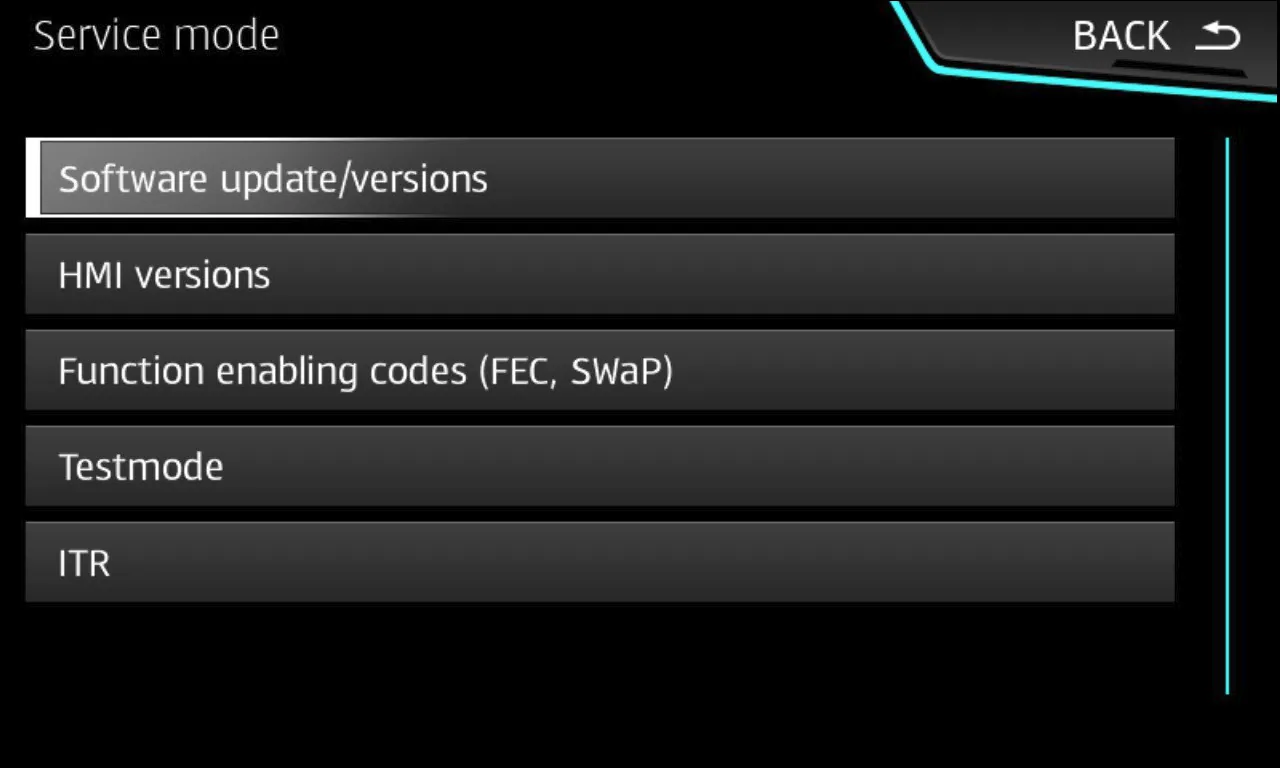
MENUbutton to enter Service Menu.
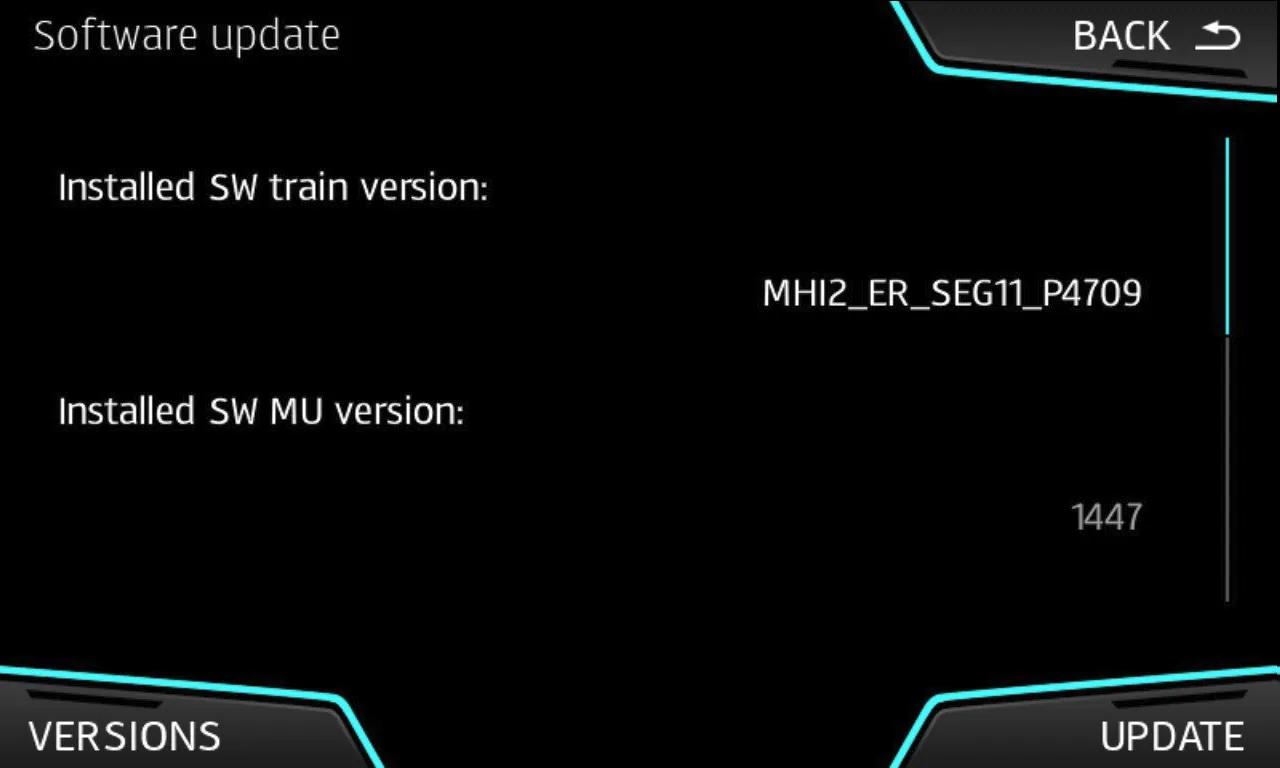
- Go to
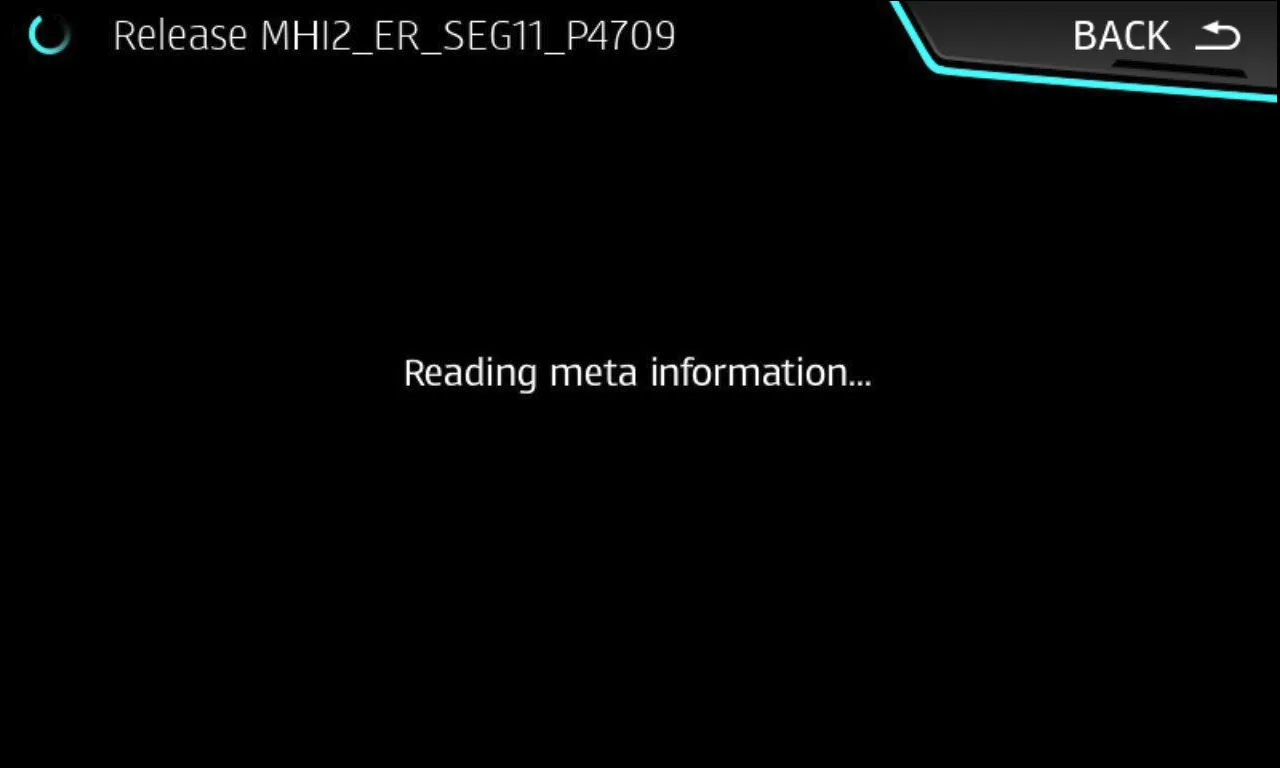
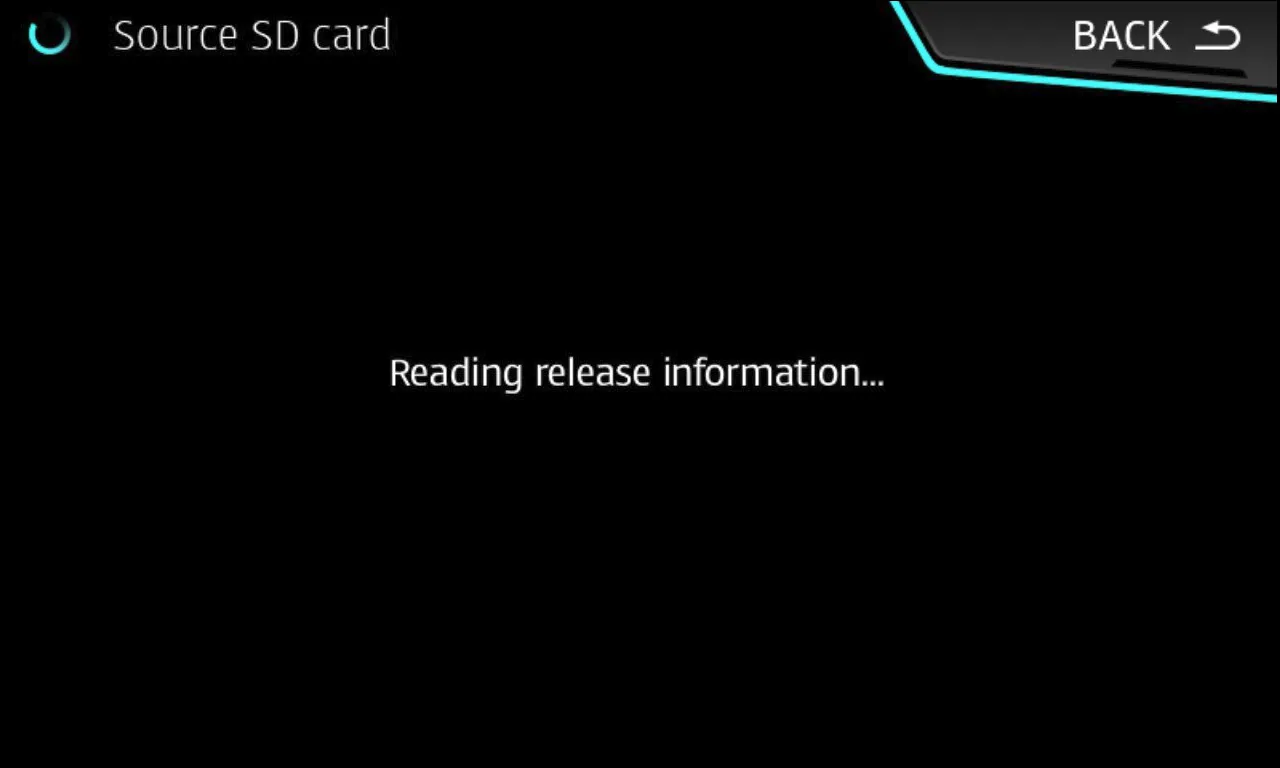
Software update/Versions→Update→SD 1. - Wait for the update to be installed. It will take some time, the system will reboot couple times during firmware update procedure.
Features
- Patched IFS-Root (FEC & CP patch) will be used during the installation.
- FecContainer will be adjusted with missing FECs during the installation including code for latest maps (
073000EE).
- Skin 4 (Carbon) will be configured during install to avoid boot up issues
- Screening 1 will be configured during install to avoid boot up issues.
- CarPlay and AndroidAuto will be enabled during the installation.
- Developer Mode with GEM (hidden Green Engineering Menu) will be enabled during the installation. No need for
OBDeleven,VCDS,VCP. - RadioStationDB
01.20.20 2020608 - GraceNote
EU V21 - RW V13 - M.I.B. - More Incredible Bash will be installed.
- Fully automated FW install after reboot
Version: 20220627
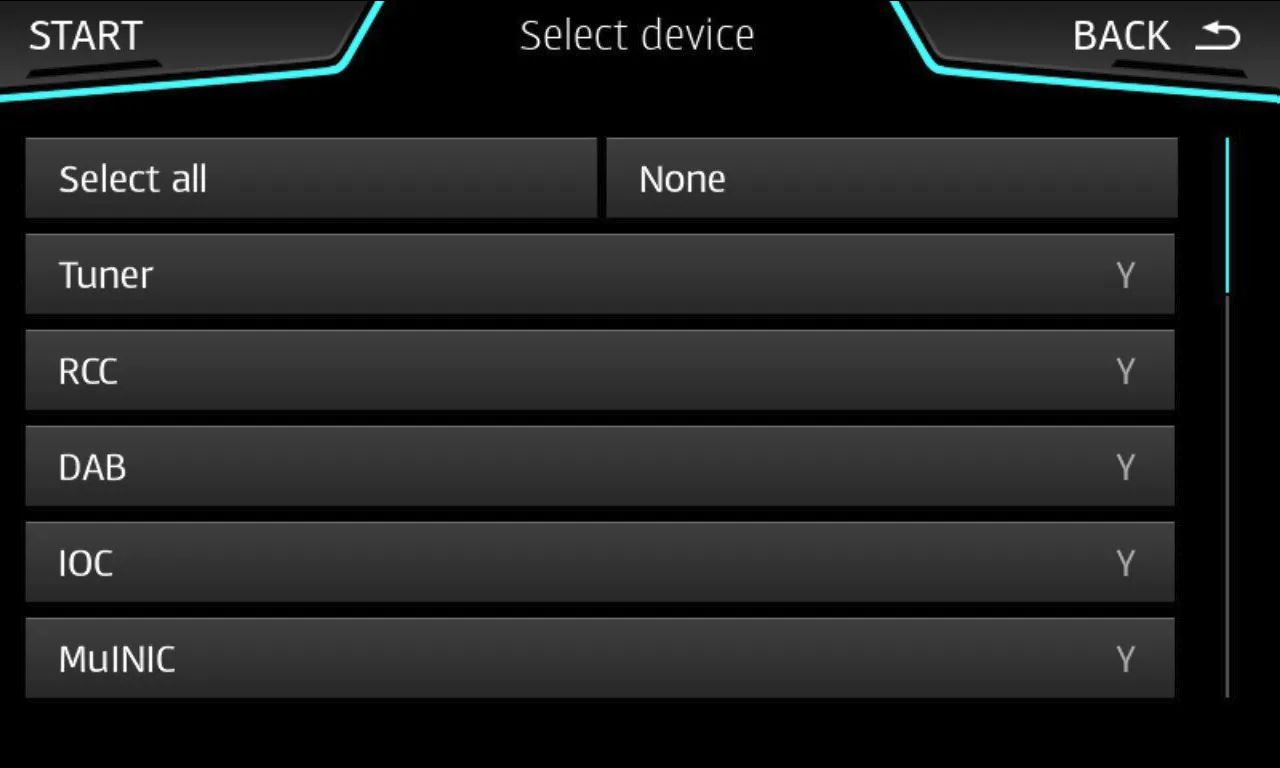
Screen - manual install
Community content mirrored from mibwiki.one. Always make a backup before flashing or coding a unit.